Overview
Run deltoids in a git repository to open the TUI. deltoids tui does
the same. When a diff is piped into deltoids, it runs as a
pager instead.
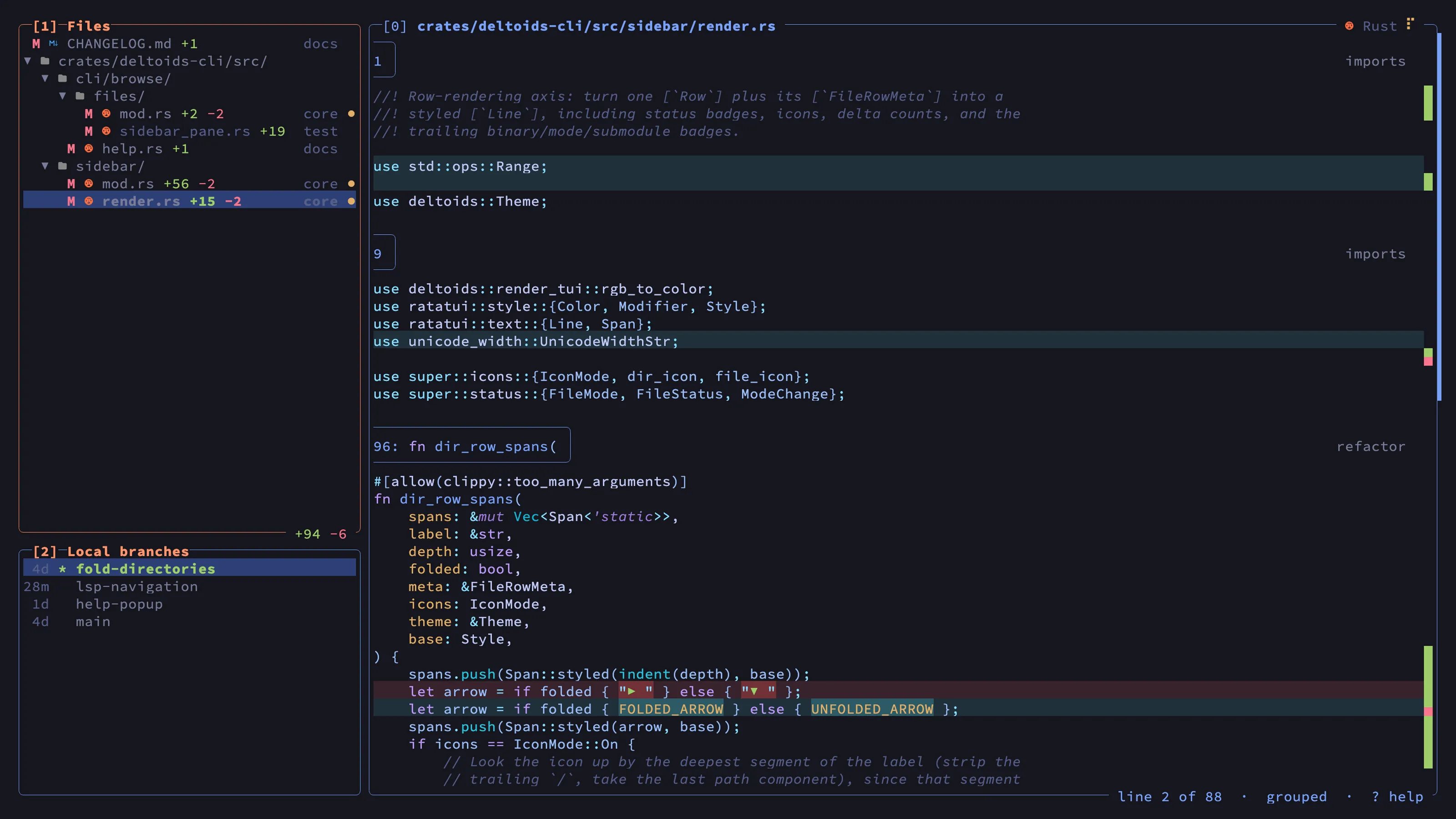
Press ? in the TUI to see every key, your custom commands, and the
mouse gestures.
Panels
The layout follows lazygit. The side panels share the left column as tabs: the column shows one panel at a time, and its border lists every tab. The main view on the right shows what the side panel selects.
| Panel | Shows |
|---|---|
| Files | The changed files in the working tree. The tab hides when the tree has no changes and no review is open. |
| Local branches | Your branches and their commits. See Commits and branches. |
| Main view | The diff of the selected file, the log of a branch, or a commit. |
| Key | Action |
|---|---|
Tab / Shift+Tab, h / l | Next or previous side panel tab |
Enter | Open a file’s diff, a branch, or a commit |
Esc | Back out, or close a review |
j / k | Move in a list, or between diff lines |
Shift+J / Shift+K | Scroll the diff three lines |
PgDn / PgUp | Page in the current pane |
g / G, Home / End | Go to the top or bottom of the current pane |
q | Quit |
The diff refreshes when files change on disk. The diff keeps its scroll position when a refresh only changes other files.
Stage and discard
The Files panel shows each file’s status as git status does. A file
can have staged and unstaged changes at the same time. Press s in the
Files panel, or Tab in the diff, to switch between the two.
| Key | Action in the Files panel |
|---|---|
Space | Stage or unstage the selected file or directory |
a | Stage or unstage all files |
d | Discard the changes of the selected file or directory |
Enter | Fold or unfold a directory |
In a GitButler workspace, the Files panel shows all uncommitted changes
in one column, and discard goes through but. Run but undo to get
discarded changes back.
Hunk context
Each hunk grows to show its enclosing function, class, or section, so you see where a change sits. deltoids finds these scopes with tree-sitter. The file header names the file’s language, or marks a file whose language has no scope support.
| Key | Action |
|---|---|
z | Expand the hunk under the cursor one scope level, up to the whole file |
x | Shrink it back |
\ | Switch between grouped lines (all removed, then all added) and interleaved lines |
In the Files panel, z and x act on every hunk of the selected file
or directory.
Appearance
Press t to pick a syntax theme. The diff changes color as soon as you
pick one. Press < or > to make the sidebar narrower or wider,
or drag the divider. To set a default theme, see
Configuration.
Mouse
| Gesture | Action |
|---|---|
| Click | Focus the panel under the pointer |
| Click a tab | Show its side panel |
| Click a file | Select it |
Click ▶ / ▼ | Fold or unfold a directory |
| Click a diff line | Move the cursor there |
| Double-click a branch or commit | Open it, as Enter does |
| Wheel | Scroll the pane under the pointer |
Shift or Ctrl + wheel | Step through files |
| Drag the divider | Resize the sidebar |
For the symbol gestures, see Code navigation.
Custom commands
You can bind a key to your own shell command, for example to open the selected file in an editor. See Configuration.